
Scanning turns a recipe from a cookbook or printed page into a Silflay recipe. Once saved, you can plan it like any other recipe and Silflay can use its portions and ingredients to build your shop.
Scan the recipe pages
You can scan a recipe while choosing a meal, or add it to Saved ready for another time.
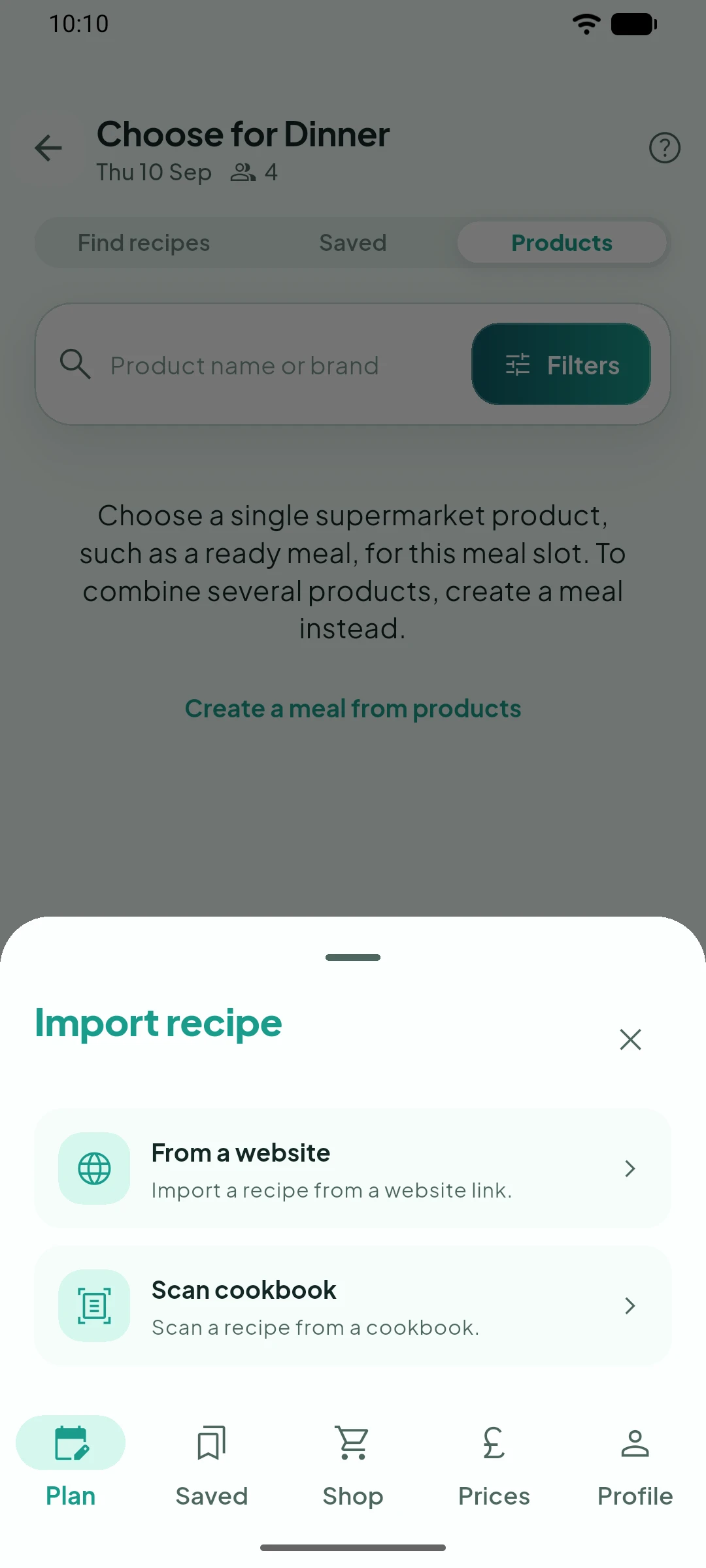
From the meal picker, open Saved and tap Add. Or go straight to the Saved tab and tap Add there. Then choose Import recipe → Scan cookbook.
Use your phone’s scanner to capture all the pages containing the recipe, including the ingredients and method, then finish the scan. A recipe can contain up to six scanned pages.
Check what Silflay found
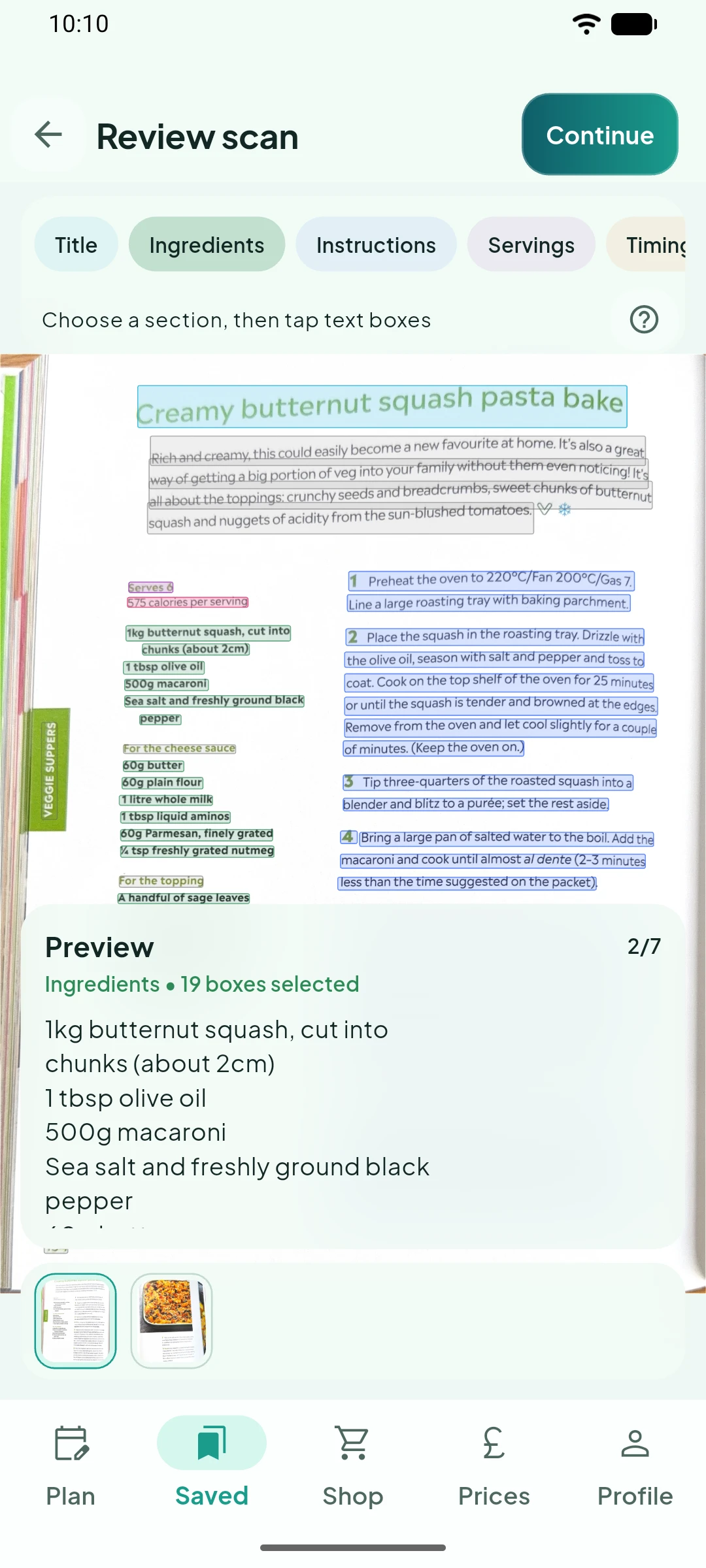
Silflay makes a first attempt to work out which parts of the page are the Title, Servings, Ingredients, Instructions, Timings, Dietary info and Nutrition.
On Review scan, check each section in turn. Select a section chip, then tap the text boxes that belong to it. To move a box to a different section, select the new section and tap the box. To remove a box from a section altogether, select its current section and tap it again. You can also press and drag to assign several boxes at once.
Move between pages and zoom in where needed. Silflay can make a good first guess, but you need to check that nothing important has been missed or put in the wrong section before tapping Continue.
Check and finish the recipe
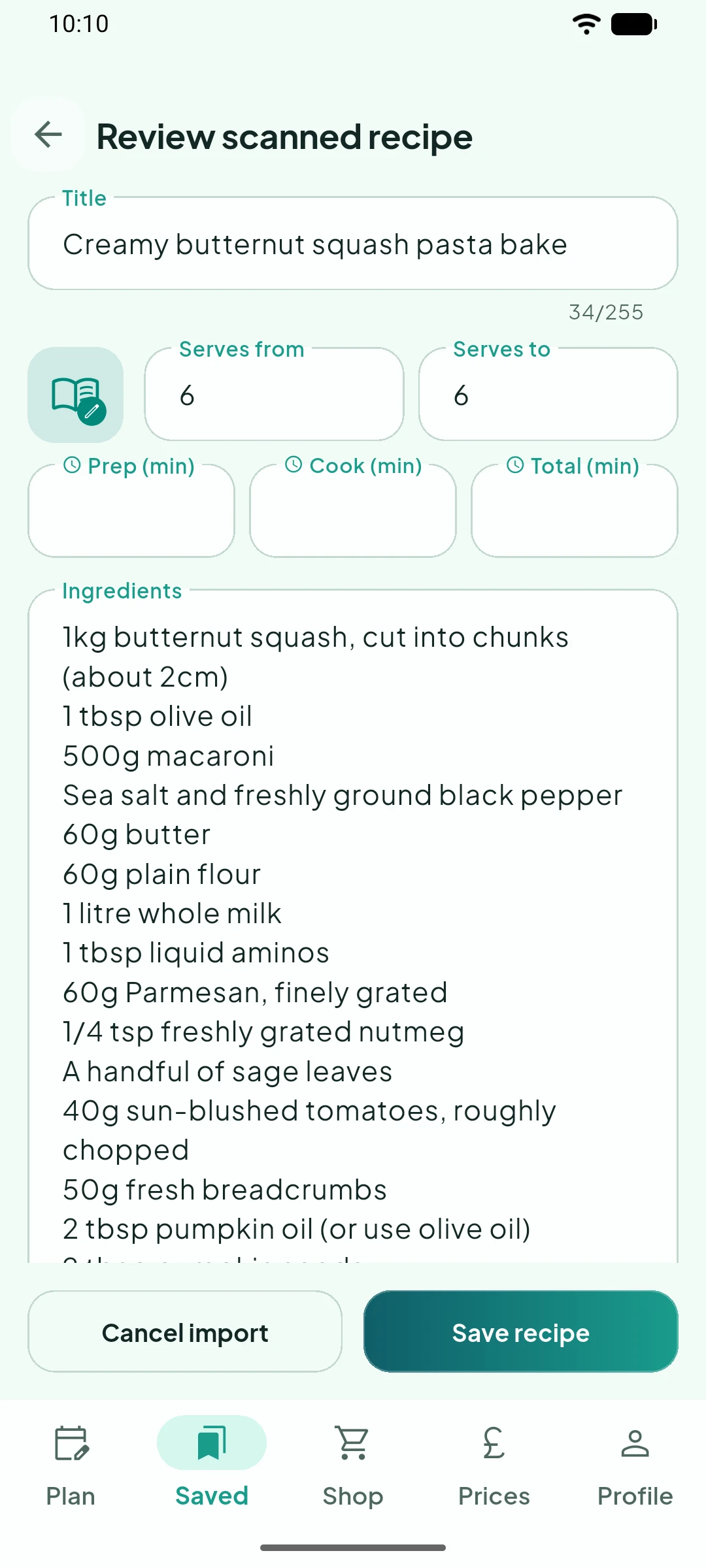
On Review scanned recipe, validate what Silflay has parsed against the book and correct anything that needs fixing. Pay particular attention to servings, ingredient quantities, fractions and units, as these affect what Silflay adds to your shop.
You can edit the other recipe details here too. The coloured book icon is editable: tap it to choose a colour you can use to distinguish or categorise your scanned recipes at a glance.
When you’re happy with the recipe, tap Save recipe.
Use your scanned recipe
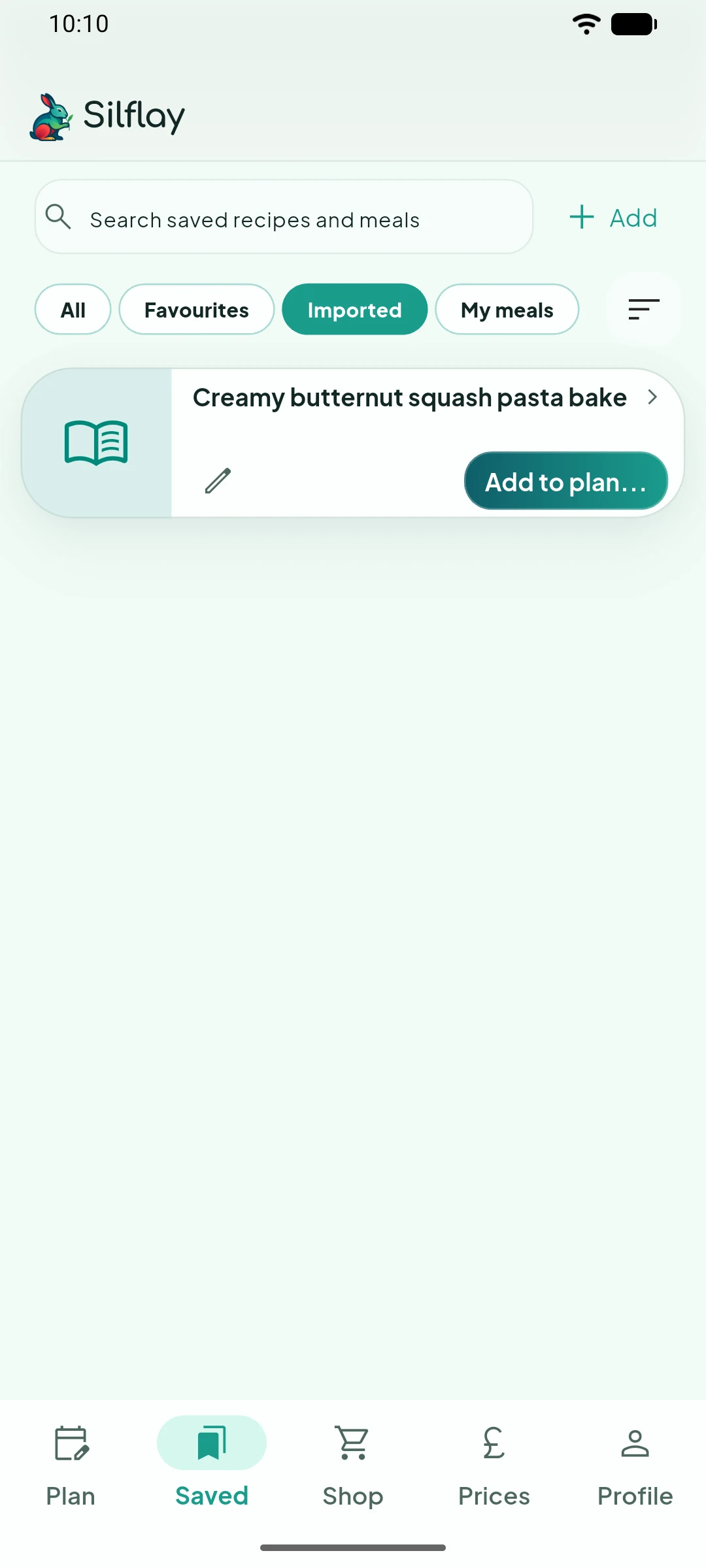
If you scanned the recipe while planning a meal, you can use it for that meal straight away. If you started from Saved, it will be there ready whenever you want it.
Like any other saved recipe, Silflay can scale its ingredients for the number of people eating and find the products you need when it builds your shop.
If the scan hasn't worked well
Scanning uses your phone's camera and text-reading technology, so the quality of the result depends on how clearly the printed page can be seen and read.If text is missing or has been misread, try scanning again with good, even lighting, keeping the page as flat as practical and making sure the whole recipe is in frame. Pay particular attention to small fractions and quantities.
You can correct mistakes during the review steps, or open a saved scanned recipe later and use Edit recipe.