
If you already have recipes that you use on a recipe website, import them so that you can use them in Silflay.
Once imported, they behave like any other saved recipe: you can choose them for a meal and have Silflay add their ingredients when building your shop.
Import the recipe from its website
You can import a recipe while choosing a meal, or add it to Saved ready for another time.
From the meal picker, open Saved and tap Add. Or go straight to the Saved tab and tap Add there. Then choose Import recipe → From a website.
Make sure that you use the link to the individual recipe page rather than the website home page or a list of recipes.
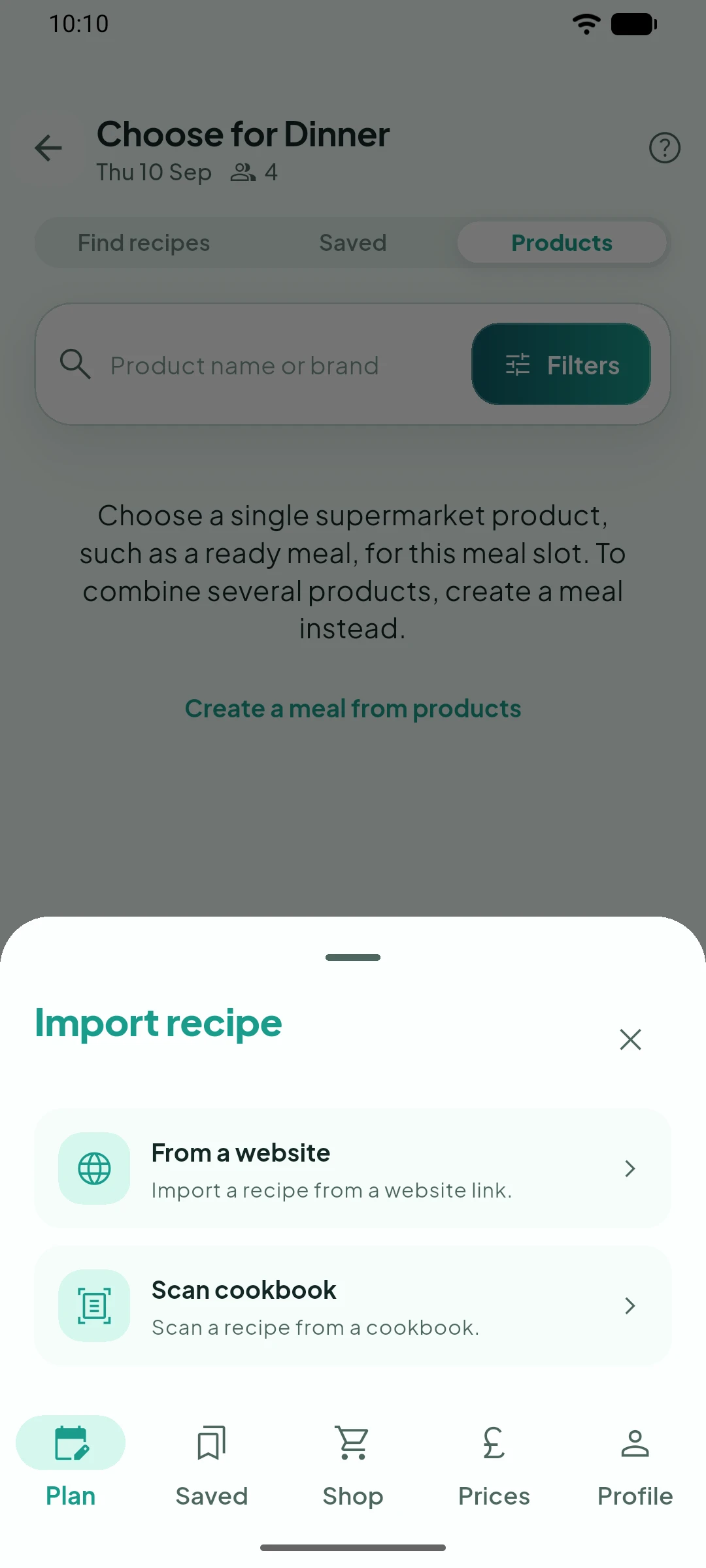
Open the recipe and save it
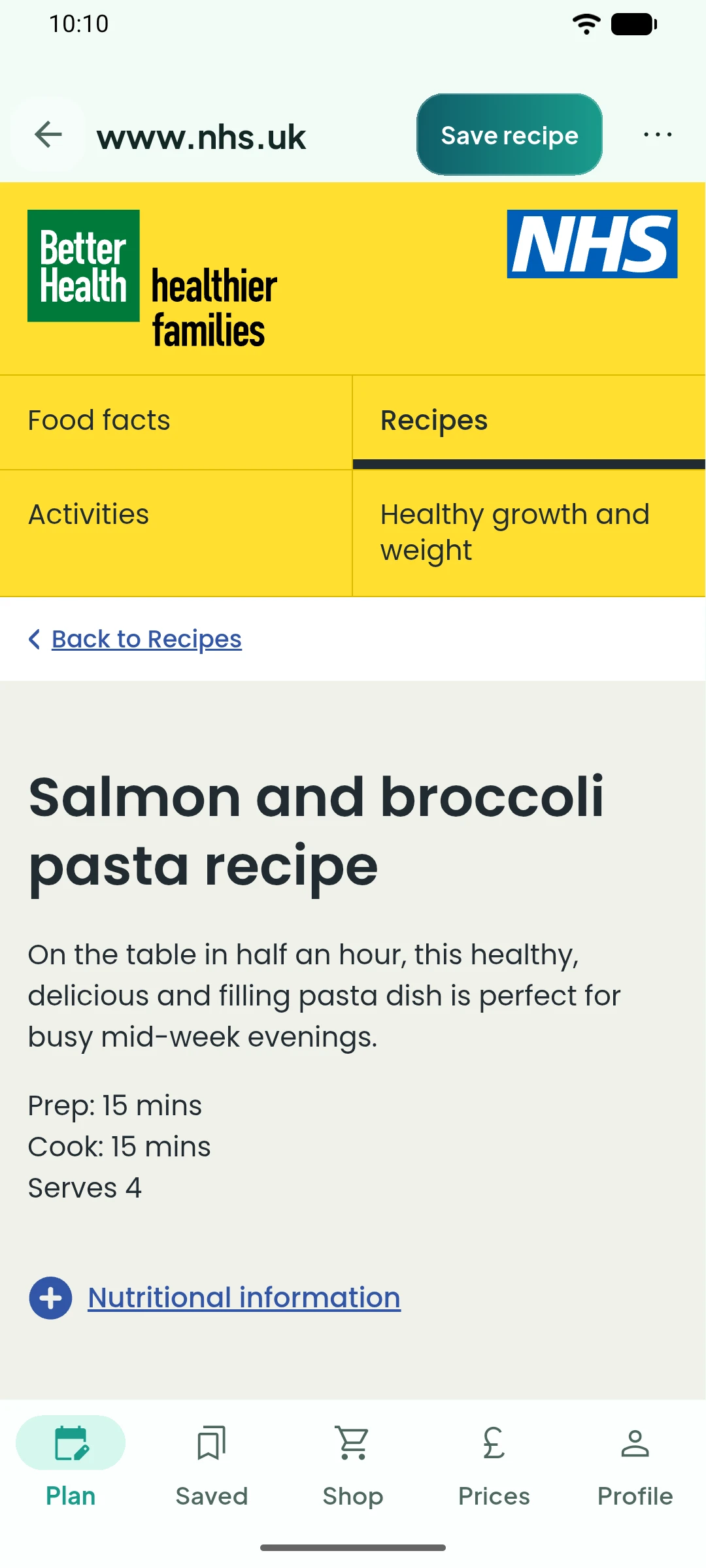
Paste the recipe address and tap Open link. Check that Silflay has opened the recipe you intended, then tap Save recipe.
Silflay reads the recipe information from the website and saves it to your collection.
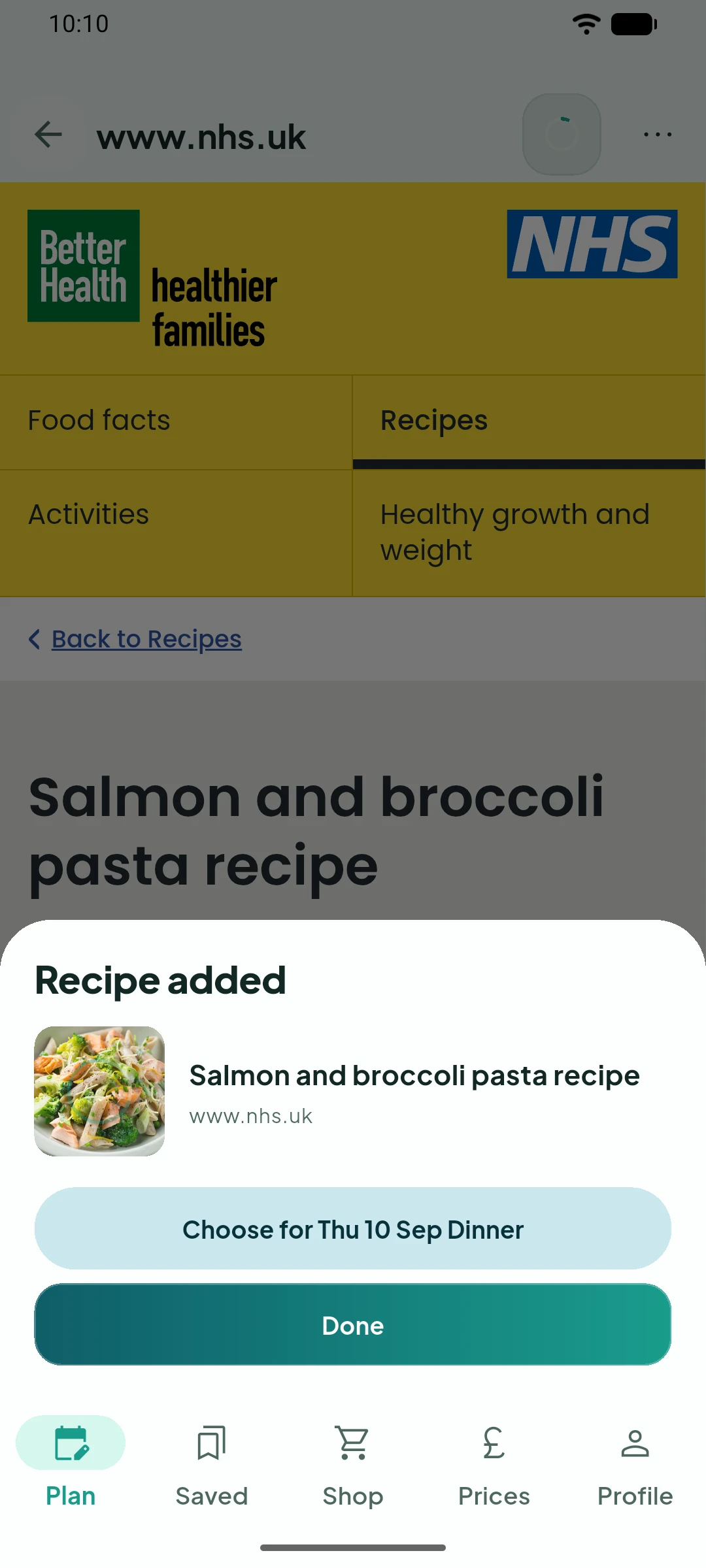
Choose it now, or keep it for later
When you see Recipe added, tap Choose for… if you imported while planning a meal that you want to use it for, or Done to leave it in Saved for later. Imports started from Saved only show Done.
Imported recipes stay in Saved, so you only need to import them once.
If a recipe won't import
Silflay can only import recipes from websites that provide their recipe information in the standard form that the app can read. Most recipe sites do, but not all. If a recipe cannot be read then first check that you are using the individual recipe page rather than a website home page, search result or collection. If that still doesn’t work, that recipe may not be available to import automatically.
If the recipe is in a book or on paper instead, scan it from your cookbook.