
Plans change. You can update an individual meal without having to rebuild the rest of your plan.
Change how many people are eating
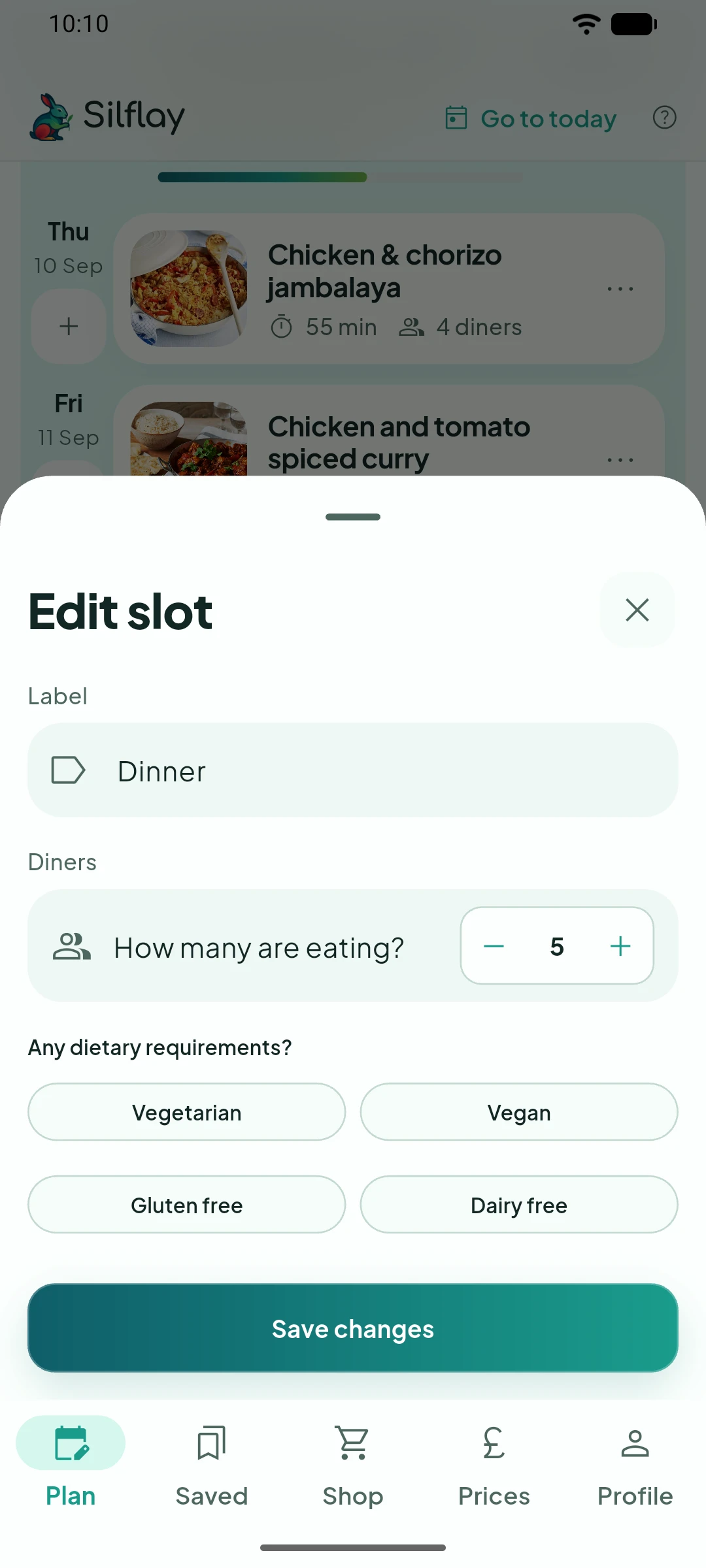
Choose Edit meal slot. Change How many are eating? and any dietary requirements, then tap Save changes. Change the meal Label if required.
If you’ve chosen a recipe, Silflay rescales its ingredients for the new number of diners and updates what you need in Shop.
Going to get a takeaway or eat out instead?
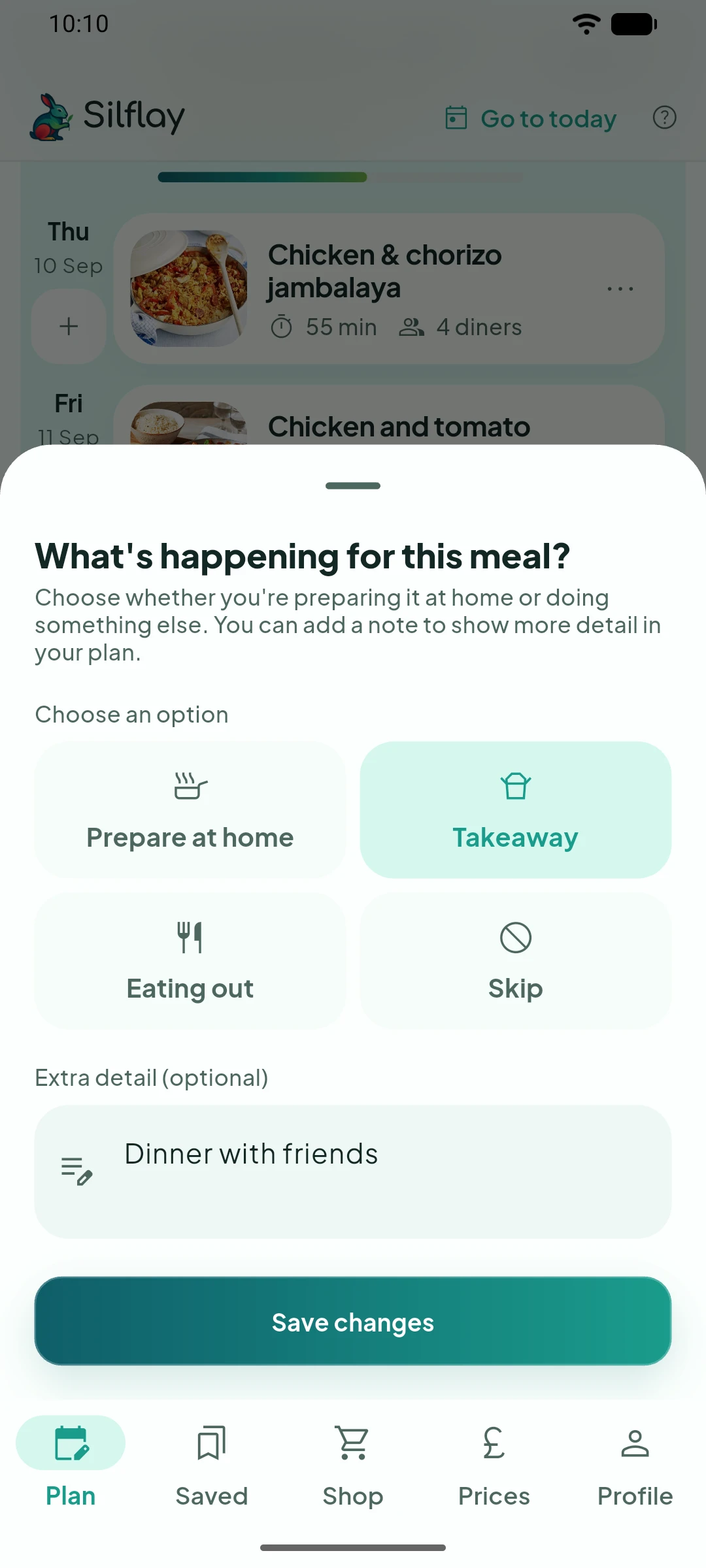
Not cooking after all? Choose Skip meal…, then select Takeaway, Eating out or Skip. You can add a note too, such as the restaurant you’re going to.
Silflay won’t include recipe ingredients for a meal you’re no longer cooking.
If plans change back, open the menu again and choose Update meal plans… → Prepare at home, then choose what you’re going to eat.
Move or swap a meal
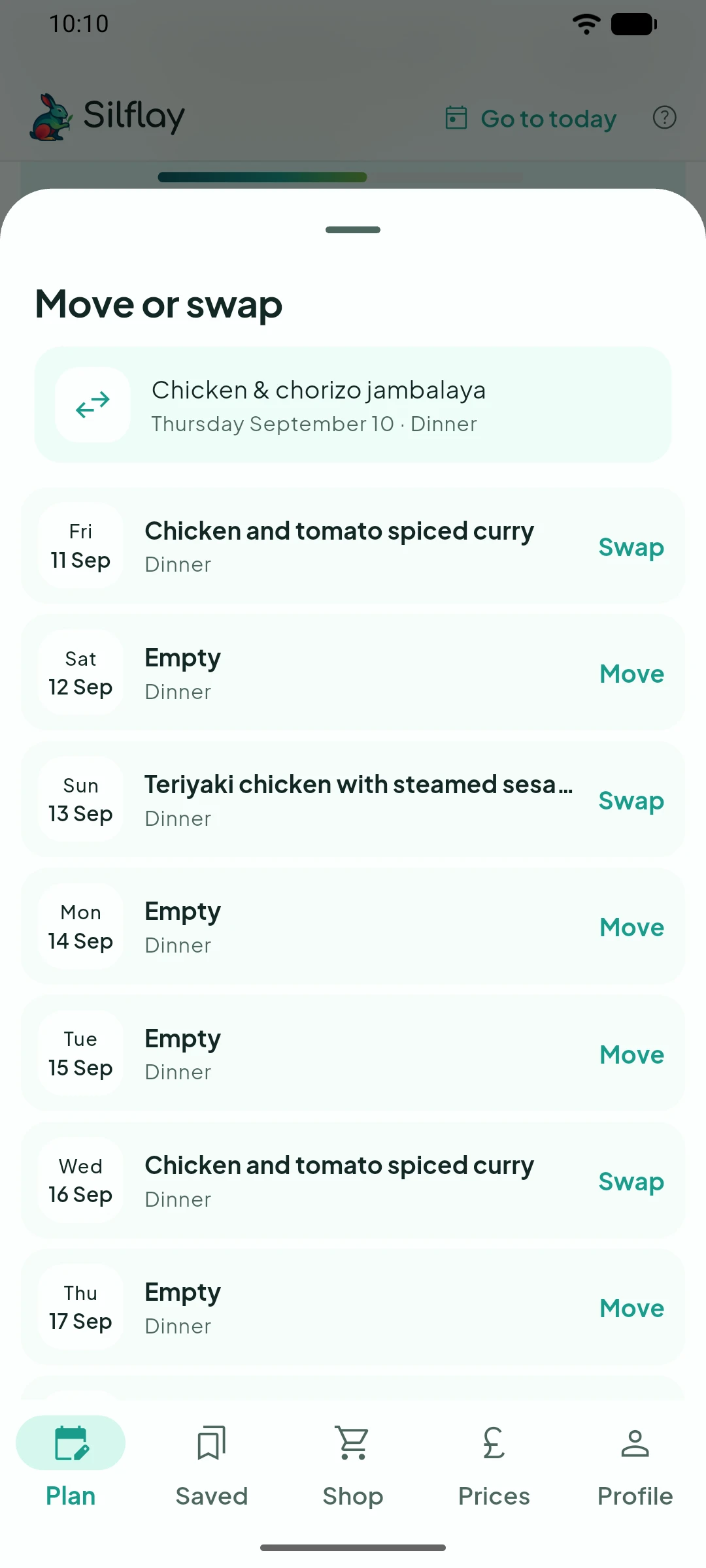
Choose Move or swap, then select where you want the meal to go. Move it into an empty meal space, or swap it with a meal that’s already there.
If you move a meal into a different shopping period, Silflay updates which shop needs to cover it.
Already sent your shopping to the supermarket?
Changes you make in Silflay are included the next time you sync. Review and sync your changes, and any affected products will be updated or removed as needed.