
Connect your supermarket account and send the products Silflay has chosen straight to your supermarket basket.*
You stay in control: Sync updates the basket but never places the order. You sign in on the supermarket’s own site, and Silflay does not collect or store your supermarket username, password or payment card details. Checkout and payment always stay with the supermarket.
\*Online basket sync is not available for Aldi.Connect your supermarket
If you haven’t connected yet, use Connect in Shop and follow the supermarket sign-in. You can also manage the connection from Profile.
Silflay then works with your existing supermarket basket or booked delivery. If the supermarket needs you to book an order or open it for changes first, follow the prompt and return to Shop.
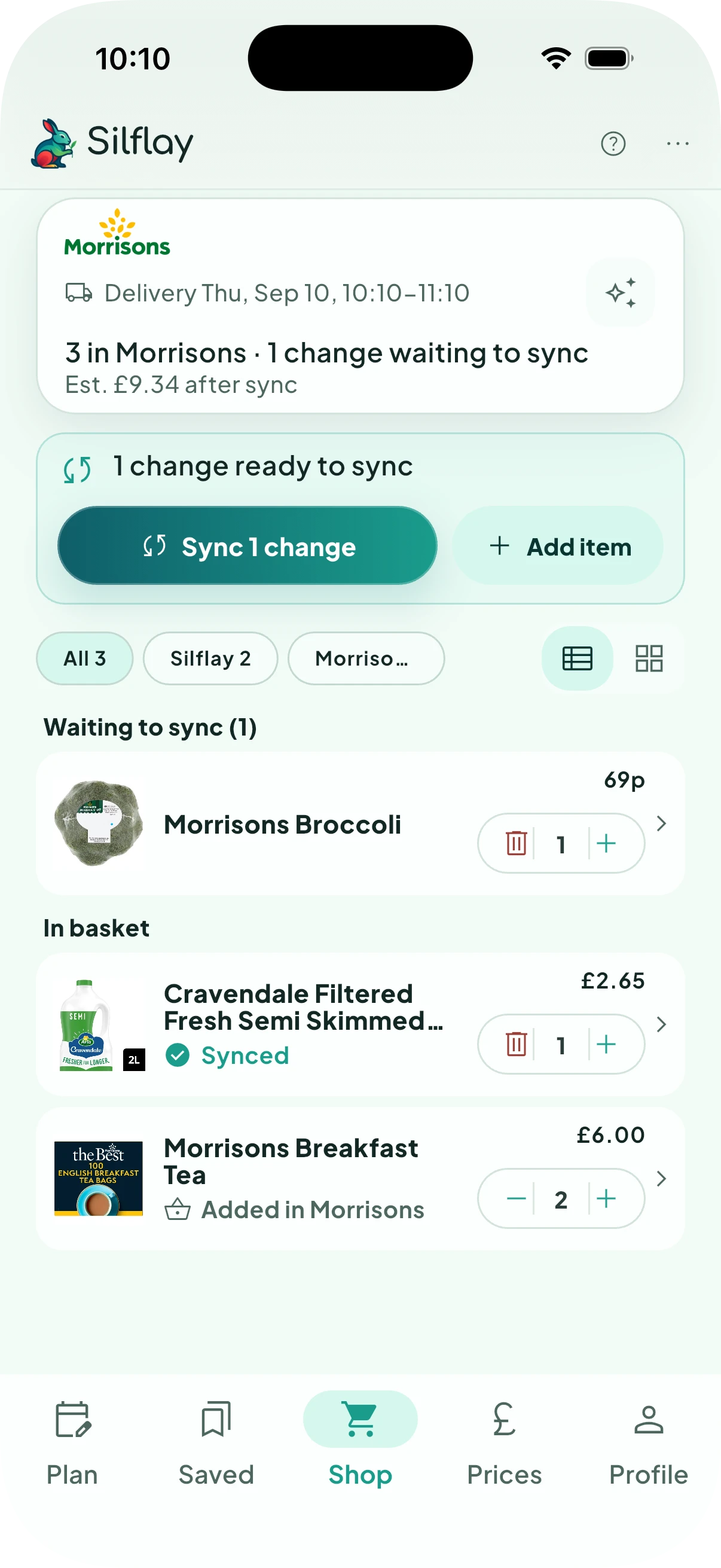
See what will change
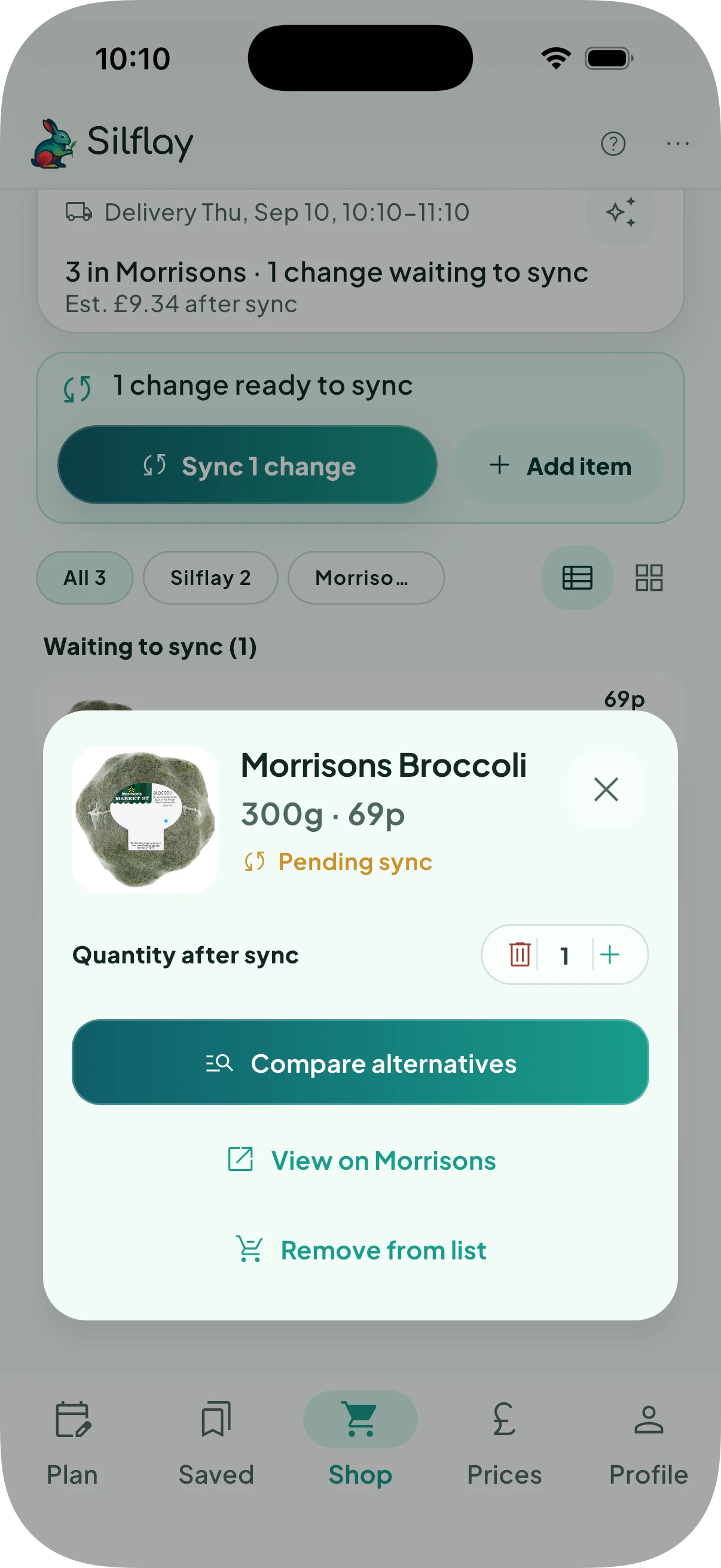
Changes you make in Silflay appear in Shop immediately but don’t reach the supermarket until you Sync. Products waiting to be added, changed or removed are marked as pending.
If you’ve also added things directly in the supermarket app or website, Silflay shows those alongside its own products. A normal sync leaves them alone. Silflay only manages the products for your plan and any supermarket items that you deliberately change in Silflay.
Sync your basket
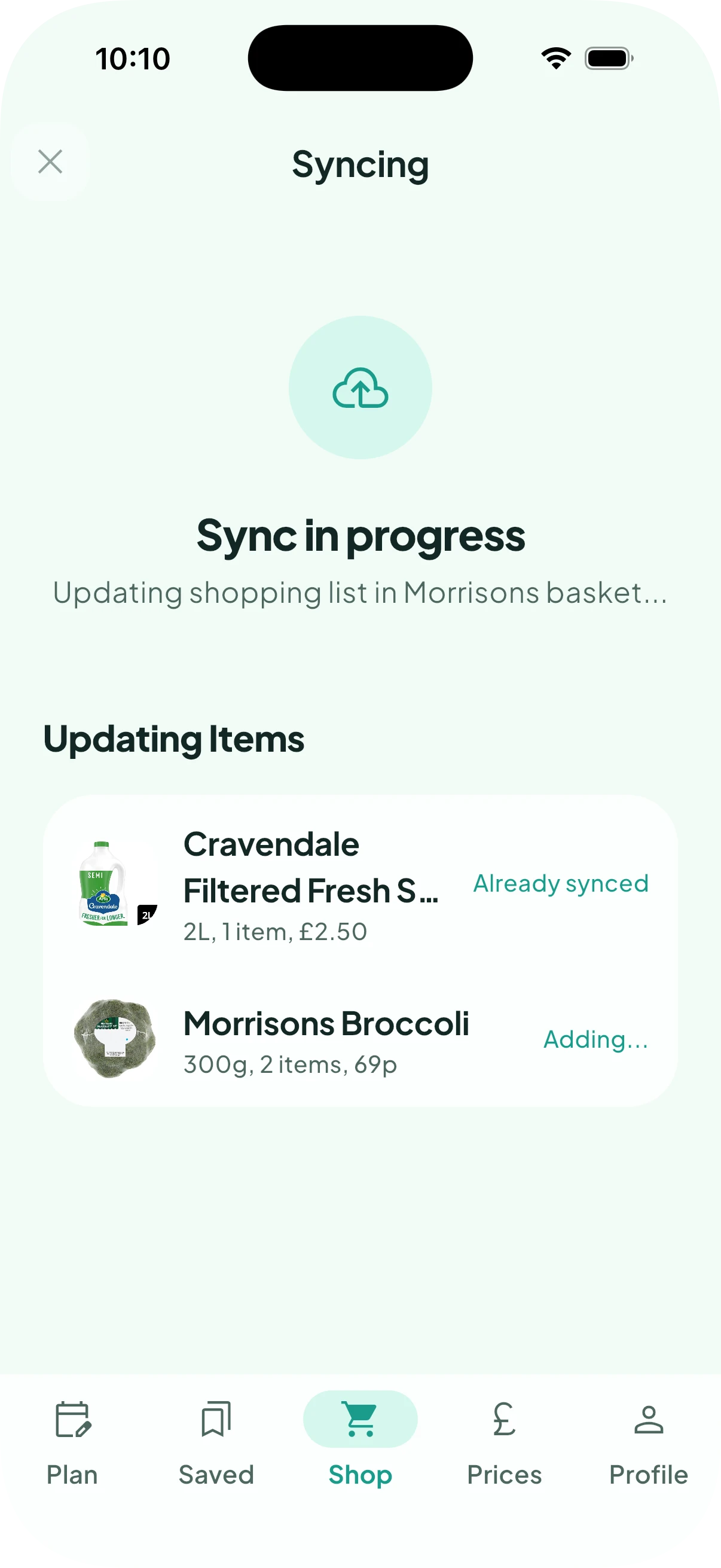
When you’re happy with the list, tap Sync. Silflay checks the supermarket basket again, then shows each item as it updates it.
Items that were previously synced already are left alone; the others are added, changed or removed as needed.
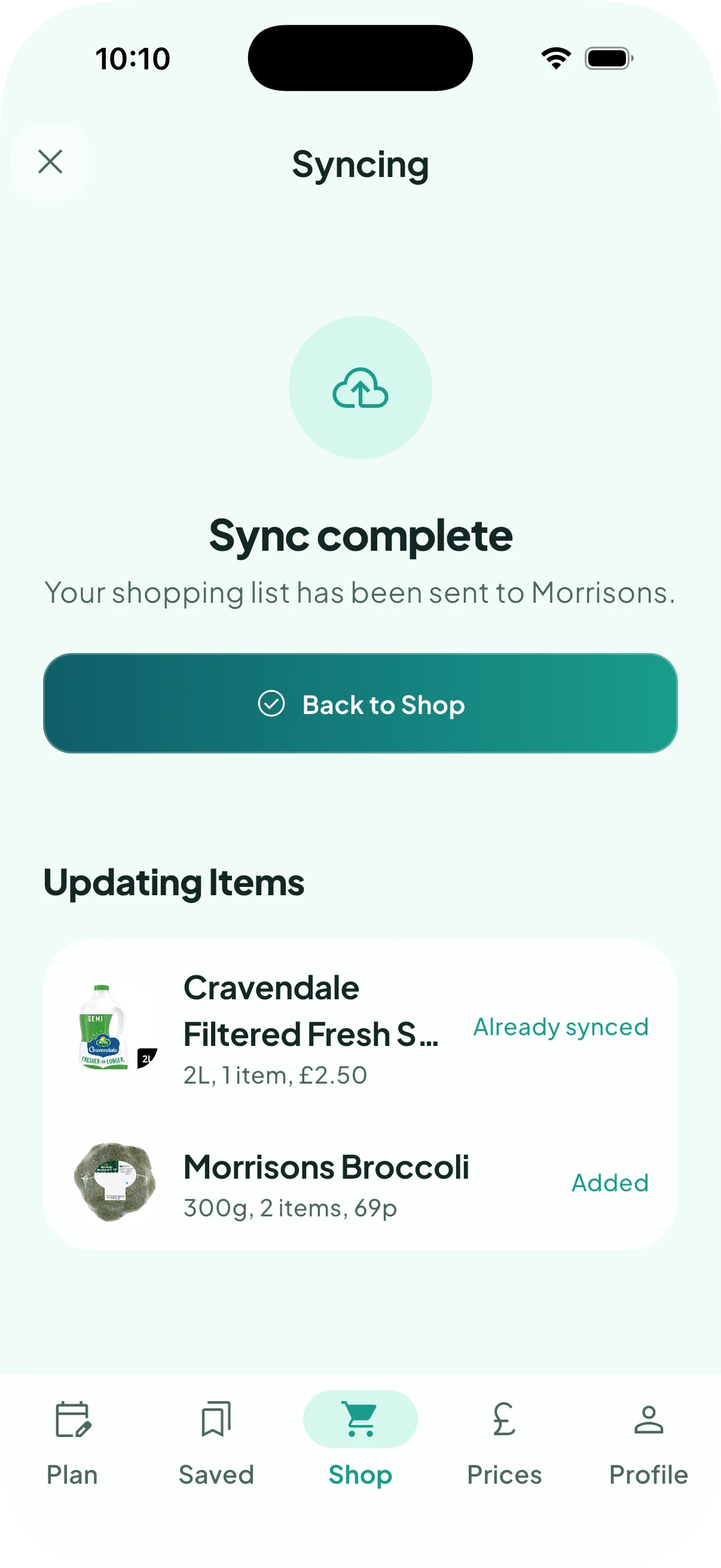
Check what was synced
When the sync finishes, check the results. You’ll see what was added or changed, anything that was already up to date, and anything Silflay couldn’t update, for example because a product is no longer available.
You can keep planning and making changes afterwards. If diner numbers change, a meal is swapped or skipped, or you choose a different product, Silflay works out what needs to change so you can re-sync any changes to the basket.
Changed something at the supermarket too?
You can still edit your basket directly in the supermarket app or website. Silflay picks those changes up when it refreshes the basket.
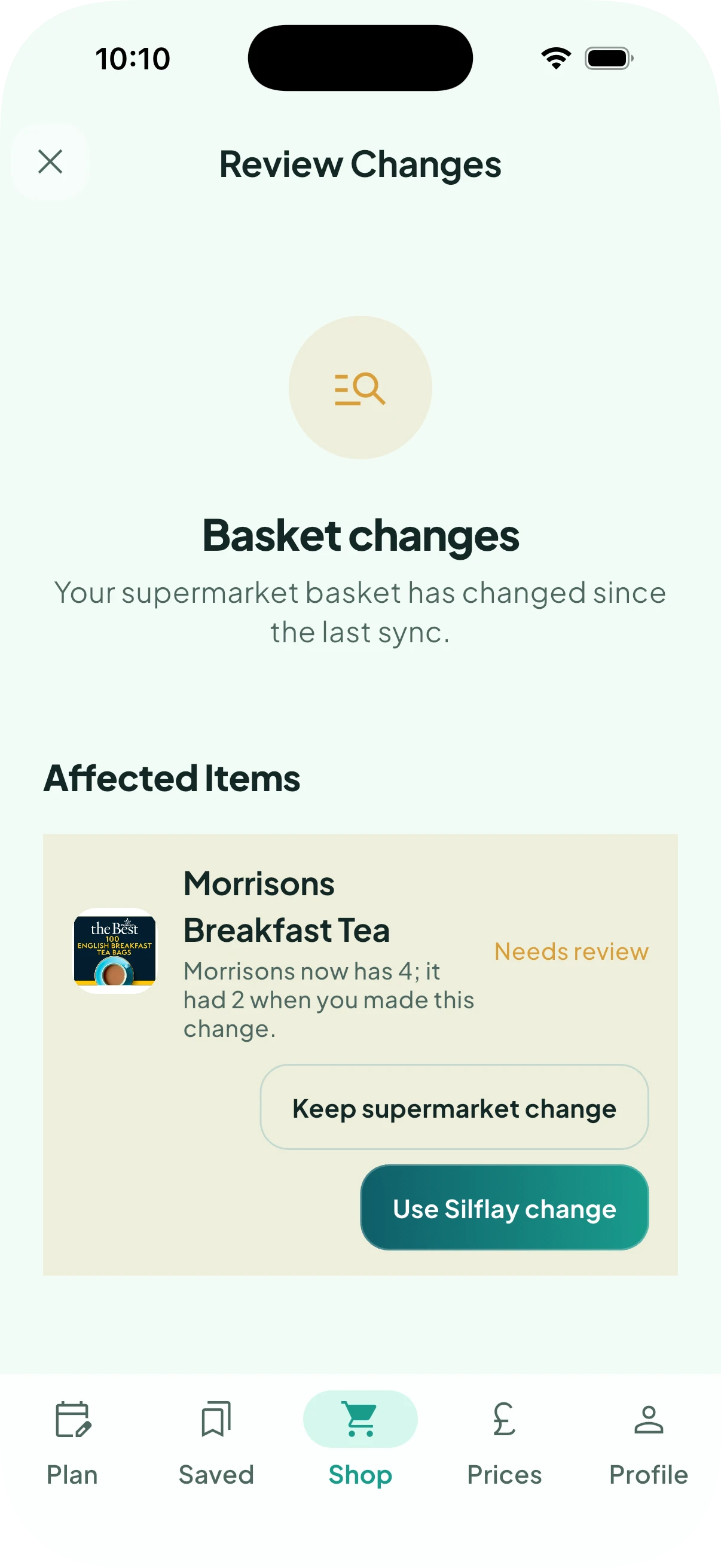
Before syncing, Silflay checks again. If the same item has changed both in Silflay and at the supermarket, it won’t silently overwrite the newer change. Choose Keep supermarket change or Use Silflay change.
Check out with your supermarket
Sync does not place your order. The final step is to open your supermarket basket, check that you’re happy with everything, and complete checkout and payment with the supermarket.
Silflay’s sync confirmation tells you the basket was updated. The supermarket’s own order confirmation tells you the order has actually been placed.